
Connect Stripe for payments
Stripe Connect lets your practice accept card payments for appointments and one-off invoices. TherapyAlly uses Express connected accounts with direct charges to your clinic.
Before you start
- [ ] Company setup is complete
- [ ] You have authority to open a Stripe account for the clinic
- [ ] You have your bank account and tax information ready
Steps
1. Open Stripe Connect settings
Go to Settings → Stripe Connect (or /settings/stripe-connect).
2. Start onboarding
Click Connect with Stripe (or Continue setup if you started before). TherapyAlly opens Stripe’s secure onboarding flow in a new tab.
Provide your business details, representative information, and bank account as Stripe requests.
3. Return and sync status
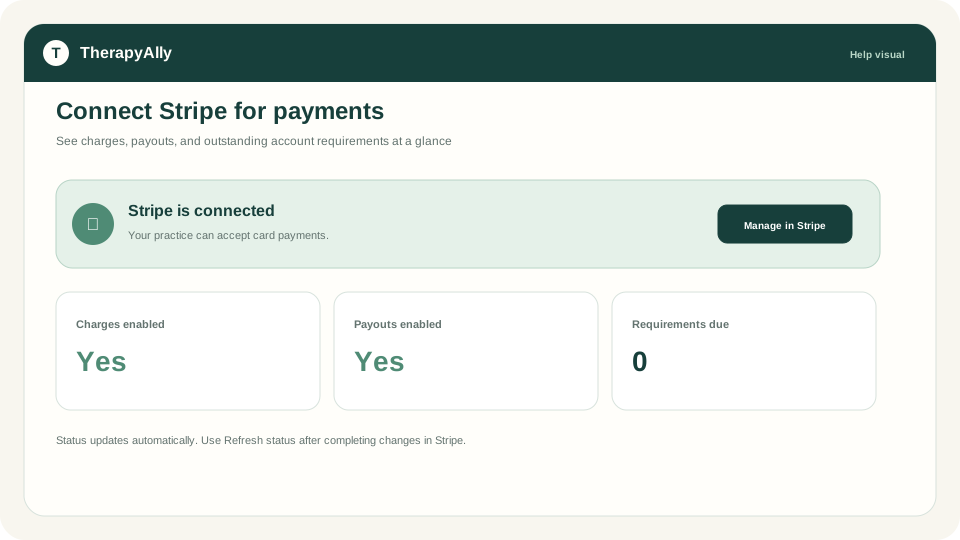
When Stripe finishes, return to TherapyAlly and click Refresh status (or wait for automatic sync). Your status card shows:
- Charges enabled: clients can pay for bookings and invoices
- Payouts enabled: funds transfer to your bank account
- Any requirements currently due: items Stripe still needs
4. Confirm branding (optional)
After you upload a company logo, TherapyAlly can sync it to your Stripe account branding for client checkout pages.
5. Enable autopay for facility bills (optional)
If your practice receives TherapyAlly platform monthly invoices, you can authorize autopay on the same settings page.
When Stripe is ready
Your checklist shows Connect Stripe for payments as complete when Charges enabled is true. Next steps:
- Schedule your first appointment
- Collect private-pay invoice payments from clients
Troubleshooting
| Issue | What to do | | --- | --- | | Charges not enabled | Open Stripe via Manage in Stripe and complete outstanding requirements | | Status out of date | Click Refresh status on the Stripe Connect page | | Wrong bank account | Use Manage in Stripe to update payout details |