
Register and activate your practice
TherapyAlly membership starts on the public registration funnel. You choose a plan, create your account, enter practice details, sign the membership agreement, and pay to activate.
Before you start
- [ ] You are authorized to sign on behalf of your clinic
- [ ] You have a payment method for your TherapyAlly membership
- [ ] You know your practice legal name and business address
Steps
1. Choose a membership plan
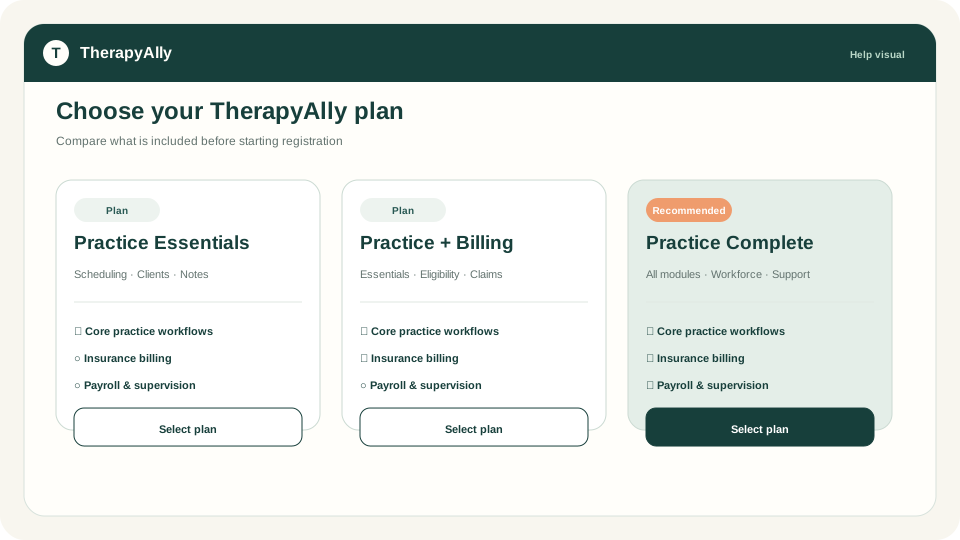
Go to Pricing or Register from the marketing site. Select the plan that matches your team size and billing needs.
Eligibility, claims, and remittances need Practice + Insurance (or Practice Complete, which includes Insurance). Practice Essentials covers private-pay invoicing only. See Set up insurance and billing.
2. Create your account
Enter your name, email, and password (or sign in with Google or Microsoft if your organization allows it). Use an email you will keep long term. Invitations and billing notices go here.
3. Add practice details
Provide your clinic name, business address, and owner information. You can refine these later in Company setup, but accurate details speed up billing and agreements.
4. Review and sign the agreement
Read the membership agreement summary, then sign electronically. Your signed agreement is stored with your practice record.
5. Complete payment
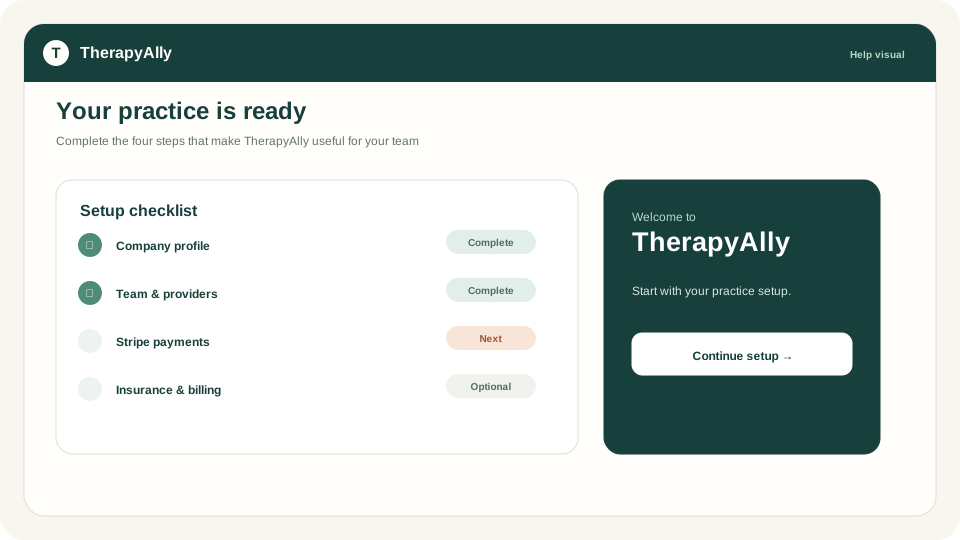
Pay the membership fee through Stripe. When payment succeeds, TherapyAlly activates your practice and sends you to the welcome screen.
6. Sign in to the app
After activation, sign in and select your practice if prompted. Your next step is Complete company setup.
Troubleshooting
| Issue | What to do | | --- | --- | | Payment declined | Verify your card with your bank, then retry from the payment step | | Did not receive welcome email | Check spam; sign in at Login with the email you registered | | Stuck on review step | Ensure all required practice fields are filled |